TODO: Spanish translation
El contenido de esta página está en inglés hasta que se complete la traducción al español.
🔶 Step 1: Launch Upscale
To become a trader on Upscale, start with @upscaletradebot and follow the instructions from registration to trading start.
You can also use the web version: all features are available on upscale.trade.
Login Methods
Choose a convenient way to log in and get started:
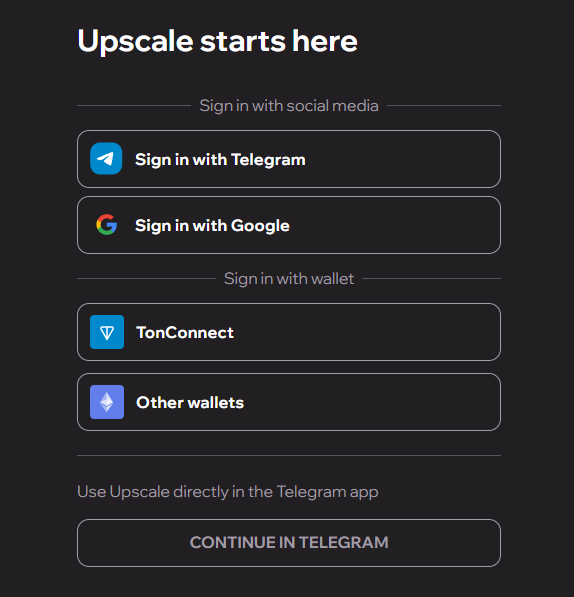
🌐 Login via Social Network
Login with Telegram
- You will be redirected to the Telegram interface where you need to confirm login using your Telegram account. Just click "Allow" to grant Upscale access to your profile.
Login with Google
- A Google authorization window will open. Enter your Google account details, allow access, and you will automatically enter your Upscale dashboard.
👛 Login via Crypto Wallet
TonConnect (for TON wallets)
- Select this option to connect a wallet based on TON (e.g., Tonkeeper). You will need to scan a QR code with your wallet or confirm the connection within the Tonkeeper/TON Wallet app.
Other wallets:
- After selecting "Other wallets," a menu will open with a list of popular wallets.
- WalletConnect: Connection via a universal protocol supporting many mobile and desktop wallets. Scan the QR code with your wallet app or confirm authorization.
- Coin98 Wallet, MetaMask, Trust Wallet, OKX Wallet, Rabby Wallet, Phantom, Rainbow, Browser Wallet:
- Choose the required wallet. The system will prompt you either to open the wallet app or confirm access in your browser extension.
- For browser wallets, a popup will appear where you need to approve account connection.
- For mobile wallets, open the mobile app and approve the action there.
💡 If this is your first time connecting a wallet — pay close attention to interface prompts and security messages from your wallet application.
🔶 Step 2: Enter Promo Code (optional)
If you have an invitation code (promo code), enter it to activate additional features or gain access to special conditions.
🔓 Promo code is not mandatory.
💡 Want to get a promo code? Subscribe to our Upscale Telegram channel to be the first to learn about giveaways and promotions.
🔶 Step 3: Choose Your Trading Capital
After payment confirmation, your deposit will appear in the app. Now you can take the challenge and start trading!
| Payment Method | Telegram | Web Version |
|---|---|---|
| Telegram Stars | ✅ | ✅ |
| TON (Toncoin) | ✅ | ✅ |
| USDT (TON) | ✅ | ✅ |
| USDT (TRC-20) | ❌ | ✅ |
| USDT (BEP-20) | ❌ | ✅ |
| USDT (ERC-20) | ❌ | ✅ |
| USDC (ERC-20) | ❌ | ✅ |
| ETH (Ethereum) | ❌ | ✅ |
| BNB (BEP-20) | ❌ | ✅ |
| TRX (Tron) | ❌ | ✅ |
💡 The payment method does not affect the amount of your trading capital — after payment, you will immediately gain access to your funds and can start trading.
ℹ️ Note: Some payment methods are only available through the web version.
How to Choose a Payment Method
- If you want to pay using BEP-20, TRC-20, or ERC-20 networks, use the web version of Upscale. Choose the network, connect your crypto wallet, and confirm the transaction.
- In the Telegram app, you can only pay with Stars, TON, and USDT (TON).
Supported Wallets for Payments
When paying via wallet, you can choose any of the following:
| Wallets on the TON network | Wallets on other networks |
|---|---|
| Tonkeeper | WalletConnect |
| Wallet (Wallet of TON) | Coin98 Wallet |
| Tonhub | MetaMask |
| Klever Wallet | Trust Wallet |
| Proton Wallet | OKX Wallet |
| Rabby Wallet | |
| Phantom | |
| Rainbow | |
| Browser Wallet |
🏄 After completing payment, you will instantly gain access to your funds and can start trading!